
How to add a cute widget to your iPhone Home Screen and StandBy
Put a widget on your Home Screen, choose which design it shows, and add the same widget to StandBy — the bedside view your iPhone shows while it charges on its side.
Updated 5 min read
A widget is the quickest way to make your Home Screen feel like yours — a sticker with a caption, a clock in your colours, an affirmation that changes during the day. This guide covers adding one, choosing which design it shows, and putting it in StandBy as well.
First, make the widget
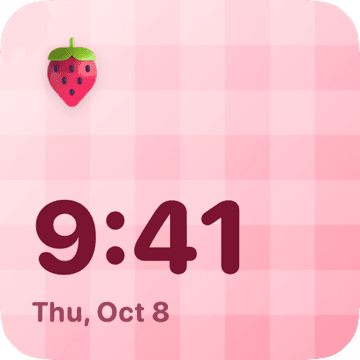
In GirlyMaps, the Widgets tab has ready-made designs and a Create button. A design is a template (Stickers, Clocks, Affirmations or Places), your text, a sticker, a palette, a background pattern and a font. Save it, and it becomes one of the designs the widget can show.


Add it to your Home Screen
Touch and hold
On your Home Screen, touch and hold an empty spot until the apps jiggle.
Edit → Add Widget
Tap Edit at the top left, then Add Widget. The widget gallery opens.
Find GirlyMaps
Search “GirlyMaps”, pick it and tap Add Widget. Drag it where you want it, then tap Done.
Choose your design
Touch and hold the widget → Edit Widget → Design, then pick yours. Your own designs come first, then the ready-made ones.
Add it to StandBy
StandBy turns your iPhone into a little display while it charges: lock it, plug it in, and turn it on its side. The first StandBy view shows widgets, two side by side.
Start StandBy
Lock your iPhone, put it on charge and turn it on its side. If nothing happens, check that StandBy is on in Settings → StandBy.
Open the widget view
Swipe horizontally until you see the two widget stacks.
Edit the stack
Touch and hold a widget. Your iPhone asks you to unlock with Face ID, then the stack wiggles.
Add GirlyMaps
Tap + at the top, find GirlyMaps and add its widget. Touch and hold it again to choose the design.
StandBy can show widgets without their usual background. GirlyMaps draws its design underneath itself, so the widget keeps its colours and pattern there too.
And on CarPlay
The same design can live on your car screen. CarPlay widgets are set up from Settings rather than the Home Screen — follow the CarPlay widget guide.
Frequently asked questions
How do I change what a widget shows?
What is StandBy on iPhone?
Can I use the same widget on CarPlay?
How many widgets can I make for free?
Keep reading
CarPlay widgets not showing? Every fix, in order
No Widgets row in settings, an empty widget screen, a design that will not change or an app missing from the gallery: what each symptom means and how to fix it on iOS 26 and later.
How to get a pink map on your iPhone
Apple Maps and Google Maps cannot be recoloured, and the screen-tint trick turns your whole phone pink. Here is what actually works for a pink, pastel or girly map — including on CarPlay.
How to make CarPlay say hello when you get in the car
Your iPhone can play a greeting every time CarPlay connects, a goodbye when you park and a welcome when you get home. It is a Shortcuts automation — here is how to set it up on iOS 27 and on earlier versions, with or without an app.