
Using GirlyMaps on CarPlay: search, routes and turn-by-turn
Everything GirlyMaps does on your car screen: the themed map and its night look, search by typing or voice, saved places, route previews, turn-by-turn guidance, the Dashboard tile and how trips move between phone and car.
Updated 6 min read
GirlyMaps is a CarPlay navigation app, which is different from an iPhone app that happens to have a widget. Plug in (or connect wirelessly), tap the GirlyMaps icon on the car screen, and you get the same themed map, search and turn-by-turn guidance as on your phone — built for the car display and its controls.
The map on your car screen
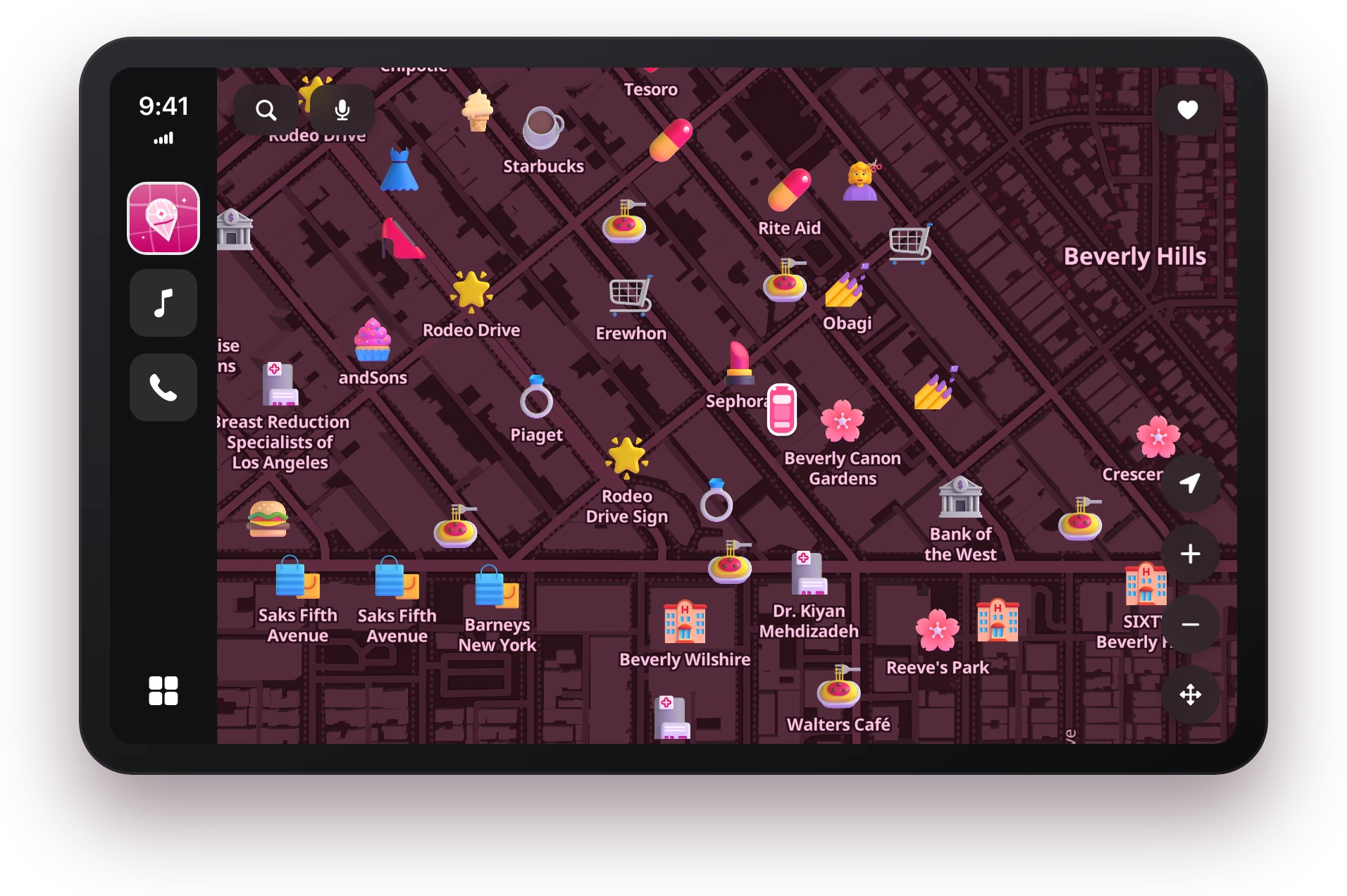
The CarPlay map uses the theme you picked on your phone, with the same 3D buildings and cute icons for cafés, beauty salons, shops and more. Drag to look around and pinch with two fingers to zoom; the location button brings the map back to your car, drawn as a little car seen from above.
When CarPlay switches to its dark look, the map switches to a night version of your own theme — the same hues, darker — instead of a generic dark map.
Search and saved places
- Search for a place or an address. Results near you come first, then the rest of the world.
- Voice search: tap the microphone and say where you want to go, so you do not have to type on the car screen.
- Places: Home, Work, your favorites and recent destinations, saved on your phone, are one tap away in the car.
Route preview and turn-by-turn
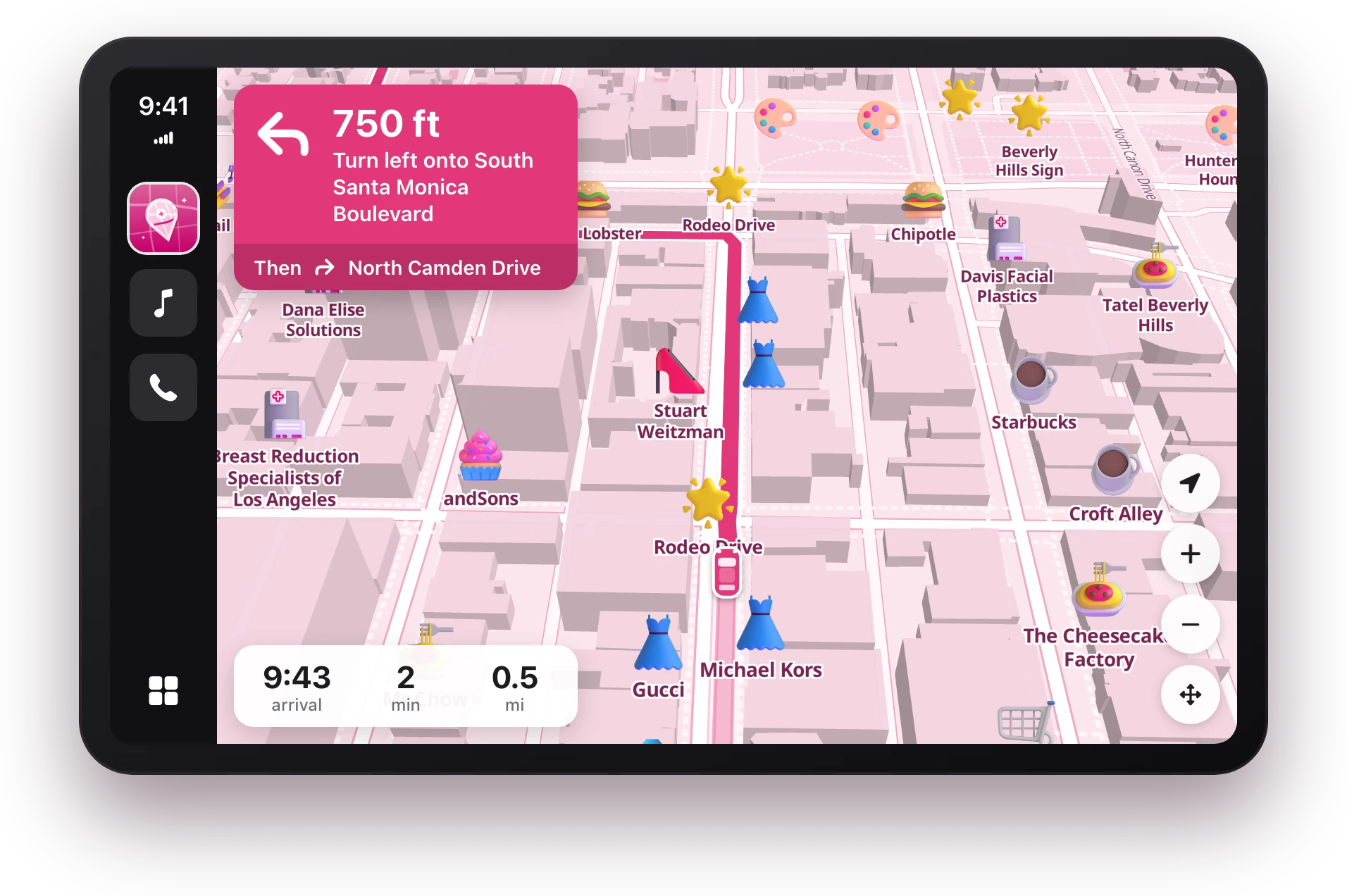
Pick a place and GirlyMaps previews the route on the map, in your theme’s colour. Start it, and CarPlay shows each turn with an arrow, the distance and the street name, while your chosen voice reads it out. During a trip you can mute the voice or end the trip, and if you drag the map away to look around, it returns to your car after a few seconds.
If you take a different way, GirlyMaps calculates a new route by itself. Guidance keeps running with the phone locked or in your bag.
The CarPlay Dashboard
CarPlay’s Dashboard is the split screen with a map next to music and suggestions. GirlyMaps can fill that map tile with your themed map, your car and the route. When you are not on a trip, the tile offers shortcuts — Home, Work and “Where to?” — that open the full GirlyMaps screen in the car.
How the phone and the car work together
- One trip, two screens. Start a trip on your phone and it continues on CarPlay when you connect; start one in the car and it shows on your phone.
- A cover on the phone. While GirlyMaps is on the car screen, the phone shows “GirlyMaps is on your car screen” instead of a second map. Tap Use on iPhone to use the phone anyway.
- Live Activity. On your phone, the next turn shows on the Lock Screen and in the Dynamic Island. While CarPlay is connected, the car screen takes over and the Live Activity steps aside. If the trip is still going after you disconnect, it returns once GirlyMaps is open on your phone again.
More for the car
Two extras live outside the navigation screen: widgets on CarPlay’s widget screen (iOS 26 and later — here is how), and sounds that play when CarPlay connects, when you park and when you get home (set them up here).
Frequently asked questions
Does GirlyMaps work on CarPlay for free?
Can I start a trip on my phone and continue in the car?
Why does my phone say GirlyMaps is on your car screen?
Does GirlyMaps show traffic on CarPlay?
Keep reading
How to get a pink map on your iPhone
Apple Maps and Google Maps cannot be recoloured, and the screen-tint trick turns your whole phone pink. Here is what actually works for a pink, pastel or girly map — including on CarPlay.
How to make CarPlay say hello when you get in the car
Your iPhone can play a greeting every time CarPlay connects, a goodbye when you park and a welcome when you get home. It is a Shortcuts automation — here is how to set it up on iOS 27 and on earlier versions, with or without an app.
CarPlay widgets not showing? Every fix, in order
No Widgets row in settings, an empty widget screen, a design that will not change or an app missing from the gallery: what each symptom means and how to fix it on iOS 26 and later.