
How to make CarPlay say hello when you get in the car
Your iPhone can play a greeting every time CarPlay connects, a goodbye when you park and a welcome when you get home. It is a Shortcuts automation — here is how to set it up on iOS 27 and on earlier versions, with or without an app.
Updated 7 min read
It is one of those little things that makes a car feel like yours: you sit down, the screen lights up, and your car says “Hey gorgeous, ready to slay the road?”. CarPlay has no setting for this. What makes it possible is Apple Shortcuts, which can run an action the moment your iPhone connects to CarPlay — and that action can speak, or play a sound.
There are three moments worth a sound: when CarPlay connects, when it disconnects (you have parked), and when you arrive home. All three use the same recipe.
How it works
A personal automation in the Shortcuts app is a trigger plus actions. The trigger here is CarPlay, with two options: Connects and Disconnects. For the welcome home, the trigger is Arrive, set to your home address. The action is whatever should happen — speaking a line of text, or playing a sound from an app that offers a Shortcuts action for it.
While CarPlay is connected, your iPhone’s audio goes to the car, so the greeting comes out of the car’s speakers like your music would.
Set it up on iOS 27
iOS 27 moved automations into the same flow as making a new shortcut, so the Automation tab you may remember is no longer where you start.
Start a new shortcut
Open Shortcuts and tap + to start a new shortcut.
Search “CarPlay”
Search “CarPlay” and pick CarPlay under Automation. (For the welcome home, search “Arrive” instead.)
Choose Connects
In the trigger at the top, set Connects — or Disconnects for a goodbye. Keep Automation on and Notify off, so it runs without asking. For Arrive, set the location to Home or any address.
Add the action
Add the action that makes the sound (see below), and you are done.
Set it up on iOS 26 and earlier
Automation → +
Open Shortcuts, go to the Automation tab and tap + (New Automation).
Search “CarPlay”
Type “CarPlay” and pick CarPlay. (For the welcome home, pick Arrive.)
Connects · Run Immediately
Tick Connects (or Disconnects), choose Run Immediately so iOS does not ask every time, then tap Next. For Arrive, choose Home as the location and Any Time, then Run Immediately.
Add the action
Add the action that makes the sound, and save.
Which action makes the sound
Speak Text (built into Shortcuts)
- Free, no app needed
- Type any line and iOS reads it out
- Uses a standard iOS voice
- Changing the line means editing the shortcut
GirlyMaps actions
- Play CarPlay Hello, Play CarPlay Goodbye, Play Home Arrival
- Chimes, spoken lines from Bestie, Baddie, Boss or Princess, or your own recording
- Change the sound in the app any time — no need to touch Shortcuts again
- Part of GirlyMaps Pro
Speak Text is the do-it-yourself route: add it as the action, type your greeting, done. It is a perfectly good way to try the idea.
GirlyMaps adds three Shortcuts actions — one per moment. Each one plays whatever you picked for that moment in the app’s Sounds tab: one of six chimes (Sparkle, Ding Dong, Fairy Dust, Harp, Bubbles, Ta-da!), a spoken greeting, or a greeting you record yourself. Because the shortcut only says “play the hello”, you can change the sound later from the app without opening Shortcuts again.
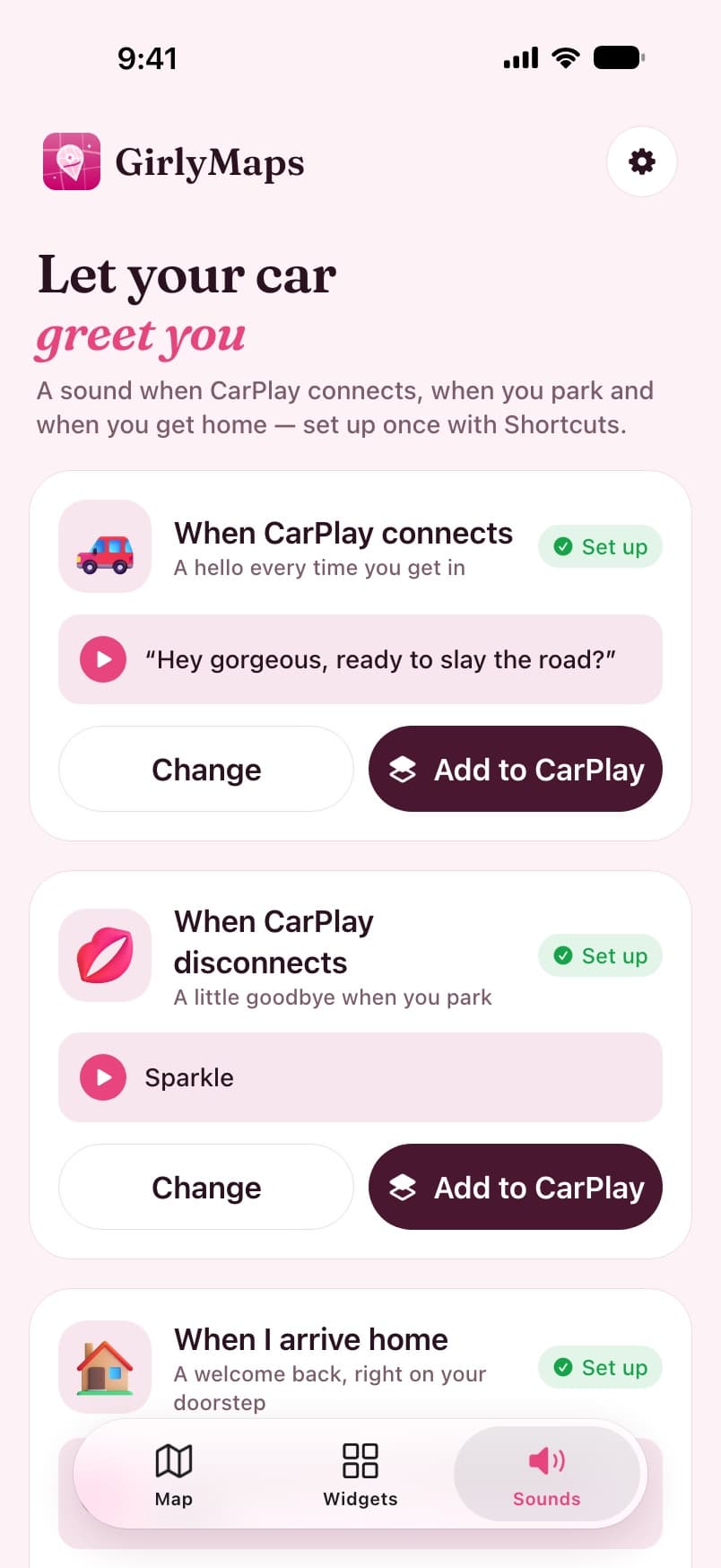
With GirlyMaps, step by step
- Open the Sounds tab and tap Change on “When CarPlay connects”. Listen to the options and pick one.
- Tap Add to CarPlay on the same card. The app shows the Shortcuts steps for your iOS version, with a button that opens Shortcuts.
- Follow the steps above, and for the action, search “GirlyMaps” and tap Play CarPlay Hello.
- Repeat for the goodbye (Play CarPlay Goodbye) and the welcome home (Play Home Arrival) if you want them.
Greetings to steal
These are some of the spoken lines GirlyMaps ships with — or type them into Speak Text:
- “Hey gorgeous, ready to slay the road?”
- “Let’s go, babe! Seatbelt on, playlist on.”
- “Engine on, attitude on. Let’s ride.”
- “Your carriage is ready, princess.”
- “Bye babe! You parked like a pro.”
- “Home sweet home. You did amazing today!”
- “Welcome back to your castle, princess.”
If nothing plays
- It asks instead of playing: turn Notify off (iOS 27) or Run Immediately on (earlier).
- Silence from a GirlyMaps action: car sounds are part of GirlyMaps Pro — without it, the actions play nothing. Also check that you picked a sound for that moment in the Sounds tab.
- The welcome home never fires: the Arrive trigger relies on Location Services, so Shortcuts needs permission to use your location.
Want more for the car? See how to add widgets to CarPlay and what GirlyMaps does on the car screen.
Frequently asked questions
Can CarPlay play a sound when it connects?
Does the CarPlay automation work with wireless CarPlay?
Why does my iPhone ask before running the automation?
Can I record my own greeting?
Keep reading
Using GirlyMaps on CarPlay: search, routes and turn-by-turn
Everything GirlyMaps does on your car screen: the themed map and its night look, search by typing or voice, saved places, route previews, turn-by-turn guidance, the Dashboard tile and how trips move between phone and car.
How to get a nicer navigation voice on iPhone
Robotic turn-by-turn directions usually mean your iPhone is using its compact built-in voice. Downloading a free Enhanced or Premium voice fixes it — and some apps let you pick a voice with personality too.
CarPlay widgets not showing? Every fix, in order
No Widgets row in settings, an empty widget screen, a design that will not change or an app missing from the gallery: what each symptom means and how to fix it on iOS 26 and later.