
How to add widgets to CarPlay (iOS 26)
CarPlay got a widget screen with iOS 26. Here is exactly where the setting lives, how to add a widget and pick its design, the one tap that saves your change, and where the widgets show up on your car screen.
Updated 6 min read
For years, CarPlay was a grid of app icons and not much else. iOS 26 added a widget screen: a page of small, glanceable widgets on your car display, set up from your iPhone. It is easy to miss, because the setting is not on the car screen at all — it is buried in your phone’s CarPlay settings, one level below your car’s name.
This guide walks through it step by step, with the two details that trip most people up: you have to switch the widget screen on before anything shows, and a design change only sticks if you close the sheet the right way.
Before you start
- iOS 26 or later on your iPhone. On older versions there is no Widgets row in CarPlay settings.
- Your car in the list. CarPlay settings only show cars your iPhone has connected to before. If yours is missing, connect once — by cable or wireless CarPlay — and it will appear.
- An app with a CarPlay widget. Not every app offers one. GirlyMaps does, with sticker, clock, affirmation and “take me home” designs.
Step by step
Open CarPlay settings
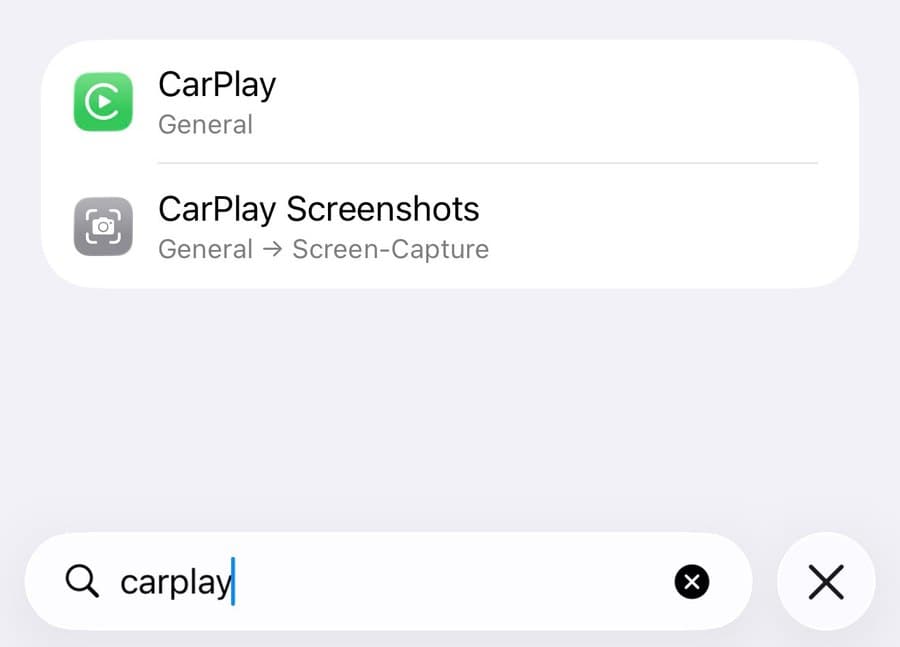
Open the Settings app and type “CarPlay” in the search field, or go to General → CarPlay. You can do this parked, with the car off — nothing needs to be connected.
Select your car
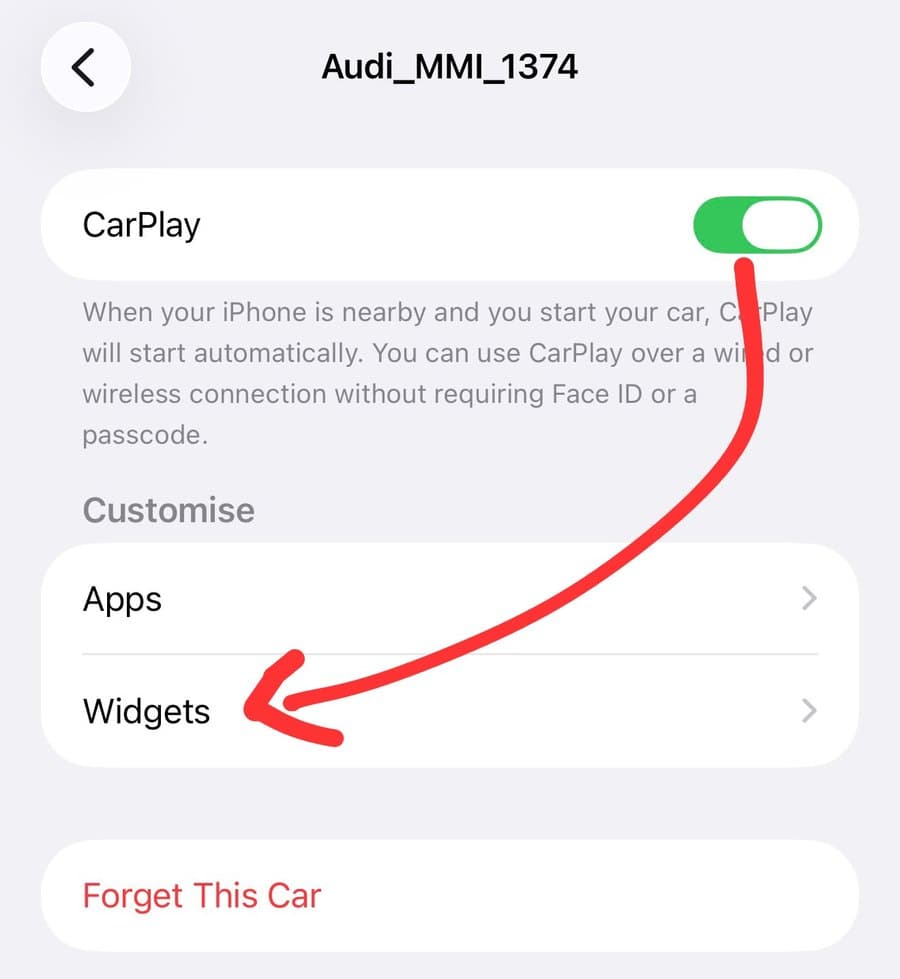
Every car you have used CarPlay with is listed under My Cars. Tap the one you want to set up — widgets are configured per car, so a second car gets its own set.
Tap Widgets
Make sure the CarPlay switch at the top is on. Below it, under Customize, you will see Apps and Widgets. Tap Widgets.
Turn on Show Widgets and tap Add Widget
Switch on Show Widgets first — without it, CarPlay does not show the widget screen at all, however many widgets you add. Then tap Add Widget.
Find the app and add its widget
The gallery lists the apps that offer CarPlay widgets. Search for the app, tap it, and tap Add Widget under the preview. It joins your widget list.
Pick the widget's design
Some widgets, including GirlyMaps, can show different designs. Tap ⓘ next to the widget in your list, then Design, and choose. In GirlyMaps, the list holds the designs you made in the app’s Widgets tab, followed by the ready-made ones.
Save with ✕
Close the sheet with ✕ at the top right. This is the step people skip: swiping the sheet down or tapping back does not save the new design.
Look at your car
Next time you connect, swipe to CarPlay’s leftmost screen. Your widgets sit there, in the order of your list.
Where the widgets show up
CarPlay puts its widgets on a page of their own, at the far left of the car display — before your app icons. If you swipe through your app pages and never see them, keep going left. A small widget is a square tile; CarPlay arranges them side by side, so a few designs fit on one screen.
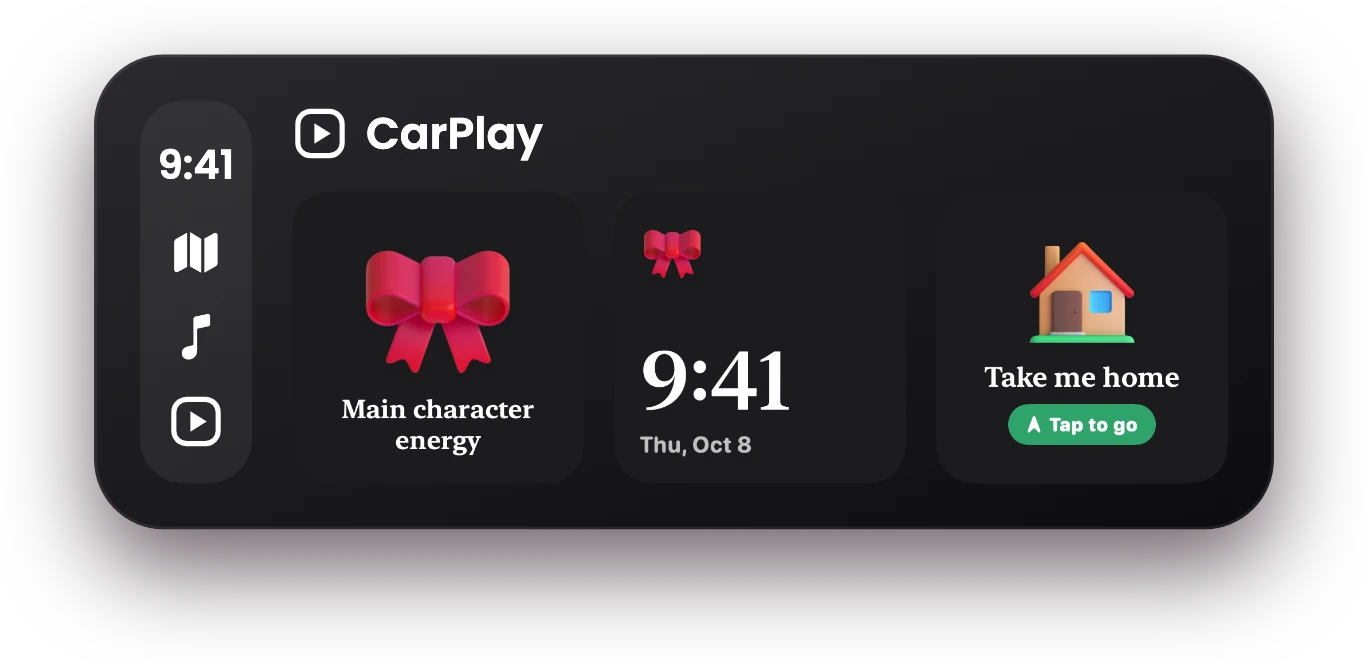
Widgets on CarPlay are meant to be read at a glance, so they come in the small size only — one sticker, one clock, one line of text.
Making a GirlyMaps widget for your car
In GirlyMaps, open the Widgets tab and either pick a ready-made design or tap Create. Every design is built from the same parts:
- A template — Stickers (a big cute sticker with your caption), Clocks (the time and date, dressed up), Affirmations (a new sweet line four times a day) or Places (a “take me home” style button).
- Your words, a sticker, a colour palette such as Blush, Lavender or Cherry Night, a background pattern — hearts, polka dots, sparkles, gingham, a gradient or plain — and a font.
The Widgets tab has an Add to CarPlay button that opens these same steps inside the app, with the design you just made already filled in. One more detail that matters in the car: CarPlay can remove a widget’s usual background. GirlyMaps widgets draw their own design underneath, so they keep their colours on the car screen instead of turning into a sticker floating on black.
Ready-made designs with free stickers cost nothing, and you can save one design of your own on the free plan. GirlyMaps Pro adds unlimited designs and every sticker.
The same widget on your Home Screen and in StandBy
A widget you make for CarPlay is a regular iPhone widget too. You can put the same design on your Home Screen or in StandBy, the bedside-clock view your iPhone shows when it is charging on its side. The steps are different, because those live in the Home Screen’s edit mode rather than in Settings — here is the full walkthrough.
If your widgets do not show up
Run through these in order:
- Check your iOS version: Settings → General → About. Below iOS 26 there is no CarPlay widget screen.
- Check that Show Widgets is switched on for that car.
- Swipe all the way to CarPlay’s leftmost screen.
- If a design did not change, open the widget again and close with ✕.
- If the app is missing from the gallery, update it and open it once on your iPhone.
Still stuck? The troubleshooting guide covers each cause in detail.
Frequently asked questions
Which iOS version do CarPlay widgets need?
Where do widgets appear on the CarPlay screen?
Can I add any app's widget to CarPlay?
Why did my widget design not change?
Do CarPlay widgets work with wireless CarPlay?
Keep reading
CarPlay widgets not showing? Every fix, in order
No Widgets row in settings, an empty widget screen, a design that will not change or an app missing from the gallery: what each symptom means and how to fix it on iOS 26 and later.
How to add a cute widget to your iPhone Home Screen and StandBy
Put a widget on your Home Screen, choose which design it shows, and add the same widget to StandBy — the bedside view your iPhone shows while it charges on its side.
Using GirlyMaps on CarPlay: search, routes and turn-by-turn
Everything GirlyMaps does on your car screen: the themed map and its night look, search by typing or voice, saved places, route previews, turn-by-turn guidance, the Dashboard tile and how trips move between phone and car.
How to make CarPlay say hello when you get in the car
Your iPhone can play a greeting every time CarPlay connects, a goodbye when you park and a welcome when you get home. It is a Shortcuts automation — here is how to set it up on iOS 27 and on earlier versions, with or without an app.