
How to get a pink map on your iPhone
Apple Maps and Google Maps cannot be recoloured, and the screen-tint trick turns your whole phone pink. Here is what actually works for a pink, pastel or girly map — including on CarPlay.
Updated 6 min read
If you have ever tried to make your map match the rest of your phone, you have found the problem: the big map apps do not let you change their colours at all. Your wallpaper is pink, your widgets are pink, and the map is the same beige and grey as everyone else’s.
Here is what each option can and cannot do, and the one that gives you a genuinely pink map — on the phone and on CarPlay.
Apple Maps: no colour themes
Apple Maps has map types — Explore, Driving, Transit and Satellite — and it follows your iPhone’s light or dark appearance. That is the extent of it. There is no theme picker, no accent colour and no setting hidden in Settings → Maps that changes the palette.
Google Maps: a different car, same map
Google Maps lets you swap the navigation arrow for a little car, which is a cute touch, but the map underneath keeps Google’s colours. The styled maps you may have seen on websites — pastel, monochrome, dark blue — are built with Google’s developer tools for maps embedded in other products. They are not available in the Google Maps app.
The screen-tint trick (and why it disappoints)
iOS has an accessibility setting that tints everything: Settings → Accessibility → Display & Text Size → Color Filters → Color Tint. Pick a pink hue and the map turns pink — along with your photos, your messages, your camera and every other app. It is a whole-screen filter, meant for people who need it to read comfortably, and it makes colours harder to tell apart, which is not what you want on a map. It also does nothing for CarPlay.
Tinting the screen
- Colours everything, not just the map
- Muddies the difference between roads, parks and water
- Has to be switched off for photos and video
- No effect on the CarPlay screen
A map drawn in pink
- Only the map changes
- Roads, parks, water and buildings each get their own shade
- Labels stay crisp and readable
- The same look on CarPlay, with a night version
A map that is pink by design
GirlyMaps takes the other approach: it draws its own map. The streets, buildings and places come from OpenStreetMap, and every colour on the map — land, parks, water, major and minor roads, 3D buildings, labels, even the route line — comes from the theme you choose. That is why it can be pink without anything else on your phone changing.
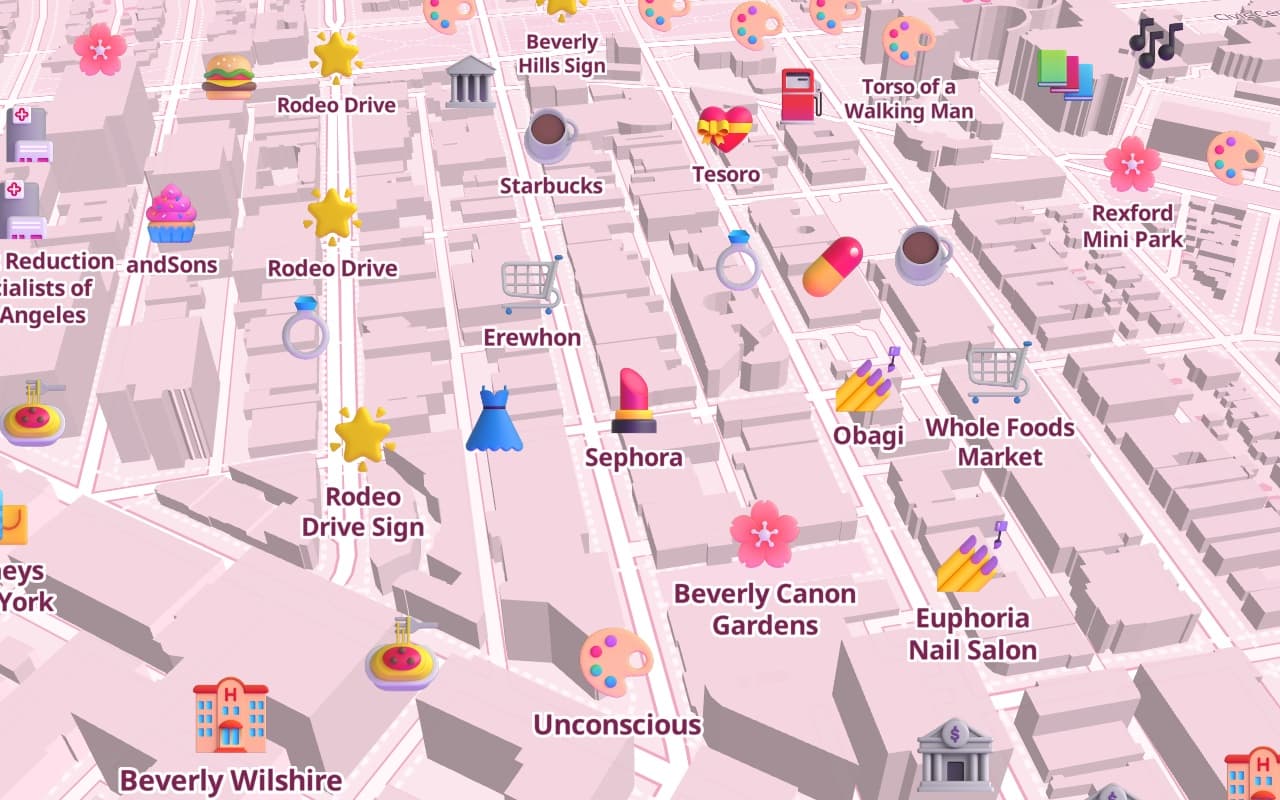
There are 10 themes:
- Pink Princess — free
- Lavender Dream — free
- Peach Sorbet
- Strawberry Milk
- Dollhouse
- Mint Matcha
- Baby Blue
- Vanilla Latte
- Cherry Night
- Midnight Glam
Places get the same treatment. Instead of grey dots, cafés, nail salons, boutiques, bakeries, flower shops and gyms each have a cute 3D icon, and the chips above the map (Coffee, Beauty, Sweets, Shopping and more) show just one kind of place at a time.
How to switch themes
On the GirlyMaps map, tap the sticker button next to the search bar — it opens Map style. Tap a theme and the map repaints straight away. The free themes stay; Pro themes can be tried right there on the map, so you can see Cherry Night on your own street before deciding.
Frequently asked questions
Can you change the colour of Apple Maps?
Can you make Google Maps pink?
Is there a pink map app for CarPlay?
Is the pink map free?
Keep reading
Using GirlyMaps on CarPlay: search, routes and turn-by-turn
Everything GirlyMaps does on your car screen: the themed map and its night look, search by typing or voice, saved places, route previews, turn-by-turn guidance, the Dashboard tile and how trips move between phone and car.
How to add a cute widget to your iPhone Home Screen and StandBy
Put a widget on your Home Screen, choose which design it shows, and add the same widget to StandBy — the bedside view your iPhone shows while it charges on its side.
How to get a nicer navigation voice on iPhone
Robotic turn-by-turn directions usually mean your iPhone is using its compact built-in voice. Downloading a free Enhanced or Premium voice fixes it — and some apps let you pick a voice with personality too.